> ## Documentation Index
> Fetch the complete documentation index at: https://help.smile.io/llms.txt
> Use this file to discover all available pages before exploring further.
# Embed points on the product page
> Show customers how many points they'll earn when they purchase a product.
Display an automatic points calculation directly on the product page, so customers can see how many points they'll earn when they purchase an item or service. No code required.
**Feature availability**: Embed points on the product page is available on **Standard**, **Growth, Plus, and Enterprise** plans for merchants on **Shopify** only.
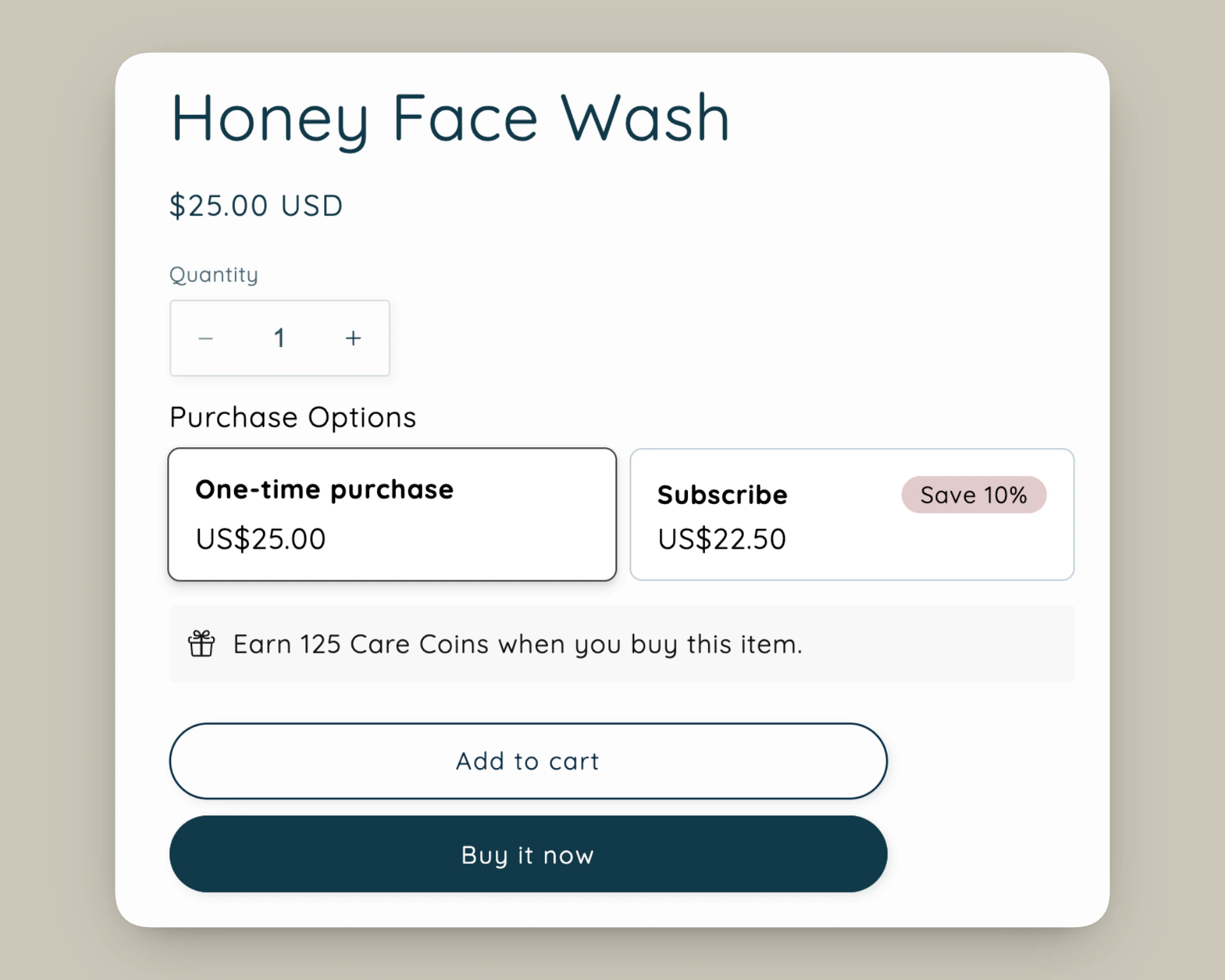 ## Add points to product page
1. From **Smile Admin**, navigate to **On-site content** > **[Points on product page](https://admin.shopify.com/apps/smile-io/on-site/product).**
2. Click **Add to theme.**
**Tip:** Use the Shopify theme editor to control the app block's position on the page. We recommend placing it near the product price.
## Customization options
1. In the Shopify theme editor sidebar, click the **Points on product page** app block.
2. Adjust settings.
3. Click **Save.**
| **Option name** | **Effect** |
| -------------------------------- | --------------------------------------------------------------------------------------------------------------------------------------------------------------------------------- |
| Primary color | Text color. |
| Secondary color | Background color. |
| Show image | Toggles on the image displayed in the embed. |
| Custom image | Upload your own image to replace the default gift icon. Only shown when Show image is enabled. |
| Image height | Set the display height of the image in pixels (16–80 px). Only appears after a custom image has been uploaded. Smaller images render at their natural size and won't be enlarged. |
| Show points label | Determines whether `Points` or `currency name` is shown after the points amount. |
| Points text | Shown to customers who **can** earn points. |
| Instructions to join the program | Shown to customers who need to sign up in order to earn points. |
**Tip:** Use **`[points_amount]`** in the text box to show an automatic points calculation based on the product price.
## How it works
* The points block is shown when customers can earn points and automatically hides when:
* the loyalty program is turned off
* there are no active ways to earn points for placing an order
* the product is excluded from earning points
* the customer is excluded from the loyalty program
* the product is a native Shopify gift card
* Works with all **place an order** earning configurations, including fixed, incremental, and bonus points campaigns.
* If you offer different earning rates tied to VIP tiers, the **`points_amount`** variable calculates points using the lowest earning rate. Use the text fields to highlight VIP tier benefits for higher-tier customers.
## Add points to product page
1. From **Smile Admin**, navigate to **On-site content** > **[Points on product page](https://admin.shopify.com/apps/smile-io/on-site/product).**
2. Click **Add to theme.**
**Tip:** Use the Shopify theme editor to control the app block's position on the page. We recommend placing it near the product price.
## Customization options
1. In the Shopify theme editor sidebar, click the **Points on product page** app block.
2. Adjust settings.
3. Click **Save.**
| **Option name** | **Effect** |
| -------------------------------- | --------------------------------------------------------------------------------------------------------------------------------------------------------------------------------- |
| Primary color | Text color. |
| Secondary color | Background color. |
| Show image | Toggles on the image displayed in the embed. |
| Custom image | Upload your own image to replace the default gift icon. Only shown when Show image is enabled. |
| Image height | Set the display height of the image in pixels (16–80 px). Only appears after a custom image has been uploaded. Smaller images render at their natural size and won't be enlarged. |
| Show points label | Determines whether `Points` or `currency name` is shown after the points amount. |
| Points text | Shown to customers who **can** earn points. |
| Instructions to join the program | Shown to customers who need to sign up in order to earn points. |
**Tip:** Use **`[points_amount]`** in the text box to show an automatic points calculation based on the product price.
## How it works
* The points block is shown when customers can earn points and automatically hides when:
* the loyalty program is turned off
* there are no active ways to earn points for placing an order
* the product is excluded from earning points
* the customer is excluded from the loyalty program
* the product is a native Shopify gift card
* Works with all **place an order** earning configurations, including fixed, incremental, and bonus points campaigns.
* If you offer different earning rates tied to VIP tiers, the **`points_amount`** variable calculates points using the lowest earning rate. Use the text fields to highlight VIP tier benefits for higher-tier customers.