> ## Documentation Index
> Fetch the complete documentation index at: https://help.smile.io/llms.txt
> Use this file to discover all available pages before exploring further.
# Customize the referral landing popup icon
> Customize the icon displayed in the referral landing popup.
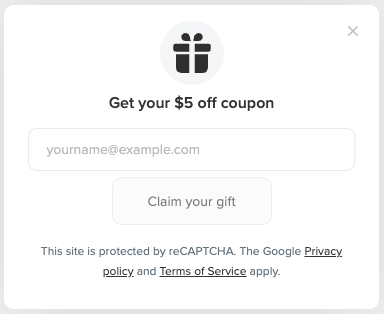
When a friend clicks a referral link, they're taken to your website and shown the referral landing popup, where they can enter their email address to claim their friend reward. You can customize its icon to match your brand.
 For more information about the referral customer journey, see **[Understand how referrals work](/en/articles/4036289-understand-how-referrals-work).**
**Important**: Changes can take up to 15 minutes to appear on your site. If you don't see your updates immediately, wait a few minutes and refresh your browser cache before checking again.
## Customize the icon
To customize the icon displayed in the referral landing popup:
1. In Smile Admin, go to **Settings** > [**Branding**](https://app.smile.io/settings/branding).
2. In the **Referral Landing Popup** section, click **Edit**.
3. Under **Icon**, choose one of the following options:
* **Default:** Select a preset icon from the available options.
* **Upload your own icon:** Upload a square JPEG or PNG image that is at least **108 × 108 px**.
4. Review the live preview to see how the icon will appear in the popup.
5. Click **Save**.
**Tip:** You can customize which page on your website customers land on when they click a referral link. The referral landing popup will appear on that page. For more information, see [Choose a referral landing page](/en/articles/4036295-add-referral-landing-page).
For more information about the referral customer journey, see **[Understand how referrals work](/en/articles/4036289-understand-how-referrals-work).**
**Important**: Changes can take up to 15 minutes to appear on your site. If you don't see your updates immediately, wait a few minutes and refresh your browser cache before checking again.
## Customize the icon
To customize the icon displayed in the referral landing popup:
1. In Smile Admin, go to **Settings** > [**Branding**](https://app.smile.io/settings/branding).
2. In the **Referral Landing Popup** section, click **Edit**.
3. Under **Icon**, choose one of the following options:
* **Default:** Select a preset icon from the available options.
* **Upload your own icon:** Upload a square JPEG or PNG image that is at least **108 × 108 px**.
4. Review the live preview to see how the icon will appear in the popup.
5. Click **Save**.
**Tip:** You can customize which page on your website customers land on when they click a referral link. The referral landing popup will appear on that page. For more information, see [Choose a referral landing page](/en/articles/4036295-add-referral-landing-page).