

Feature availability: Nudges are available on Essential, Standard, Growth, Plus, and Enterprise plans.
Types of Nudges available
Increase account creation
What it is: The account creation Nudge helps turn site visitors into new program members by keeping your loyalty program top of mind for first-time shoppers. When it’s shown: The first time a new shopper visits your site, on the first page they view. Why it’s important: Your community grows stronger as more customers join your loyalty program. Making it easier for new visitors to discover your program can help increase membership and strengthen customer engagement.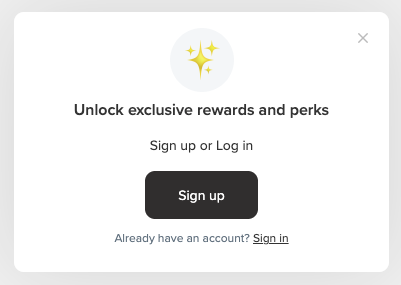
Note: The account creation Nudge only appears once for each new visitor. However, it may appear again if the customer changes browsers or devices, or uses incognito or private browsing.
Increase points spending
What it is: The points spending Nudge reminds program members that they have earned points they can redeem toward their purchase. When it’s shown: When a logged-in program member visits the cart page and has enough points to redeem a reward. Why it’s important: Reminding customers to use their points during checkout helps increase engagement with your loyalty program. Customers who redeem rewards are more likely to return and make another purchase.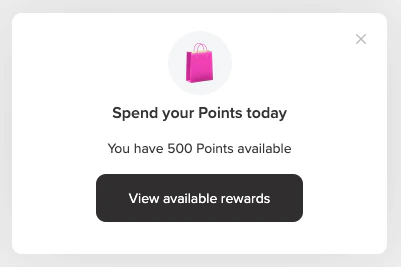
Increase reward usage
What it is: The reward usage Nudge reminds program members that they recently earned a reward they can apply to their purchase. When it’s shown: When a logged-in program member visits the cart page and has an available reward they can use toward their purchase. Why it’s important: Making rewards more visible during checkout helps customers get more value from your program. When customers clearly see the benefits of participating in your program, they’re more likely to make another purchase.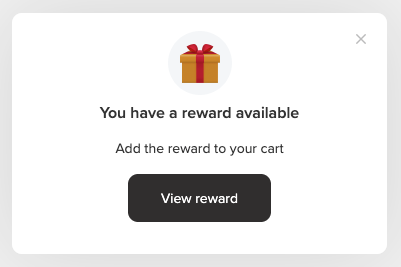
Customize a Nudge
Nudges automatically inherit your Smile UI colors, theme, icons, shapes, and placement settings from Display to create a consistent experience for your program members. You can also customize the image and text shown in each Nudge. To customize a Nudge:- In Smile Admin, navigate to Nudges.
- Select the Nudge you want to customize.
- Icon — Select a default icon or upload your own. Custom images must be square, at least 80 × 80 px, and PNG or JPEG format.
- Title
- Description
- Button text
Enable or disable a Nudge
Before a Nudge appears on your site, it must be enabled.To enable a Nudge
- In Smile Admin, navigate to Nudges.
- Select the Nudge you’d like to enable.
- Click Enable in the top-right corner.
To disable a Nudge
- In Smile Admin, navigate to Nudges.
- Select the Nudge you’d like to disable.
- Click Disable in the top-right corner.
Nudge limitations and behavior
- You must have a cart page to use the points spending or reward usage Nudge. If your store uses a cart slider, these Nudges will not appear.
- If both the reward usage and points spending Nudges are enabled, and a customer meets the criteria for both, only the reward usage Nudge will appear.
- If a customer already has a discount code applied at checkout, the reward usage Nudge will not appear. This prevents customers from seeing a prompt for a reward they are already using.
- Gift card, store credit, and variable rewards will not appear in a Nudge.
- Nudge timing cannot be adjusted, and a delay before a Nudge appears cannot be customized.