

How it works
Stay AI provides an interactive portal that allows customers to view and manage their subscriptions when logged in to your Shopify store. Using custom HTML, CSS, and JavaScript, you can display a loyalty section inside the Stay AI customer portal whose data is powered by Smile’s JavaScript SDK.The sample code provided on this page is intended as a starting point only and may need to be adjusted to fit your specific needs. Smile does not provide support for creating, updating, or maintaining custom code over time.
What it includes
The provided sample code adds the following to the Stay AI customer portal:- A loading state that displays while the loyalty program information is being retrieved.
- The customer’s points balance and VIP tier.
- A list of unused rewards that can be applied to future purchases.
- All available redemption options, including the ability to redeem.
- Ways to earn more points within the loyalty program.
- The customer’s referral URL and referral program information.
What it looks like
The loyalty section will inherit the styles of the Stay AI customer portal, including your chosen color scheme, fonts, and button styles. The loyalty section will also be responsive and will dynamically adjust based on the screen size. With the Stay AI default customer portal design, the loyalty section will look like the following: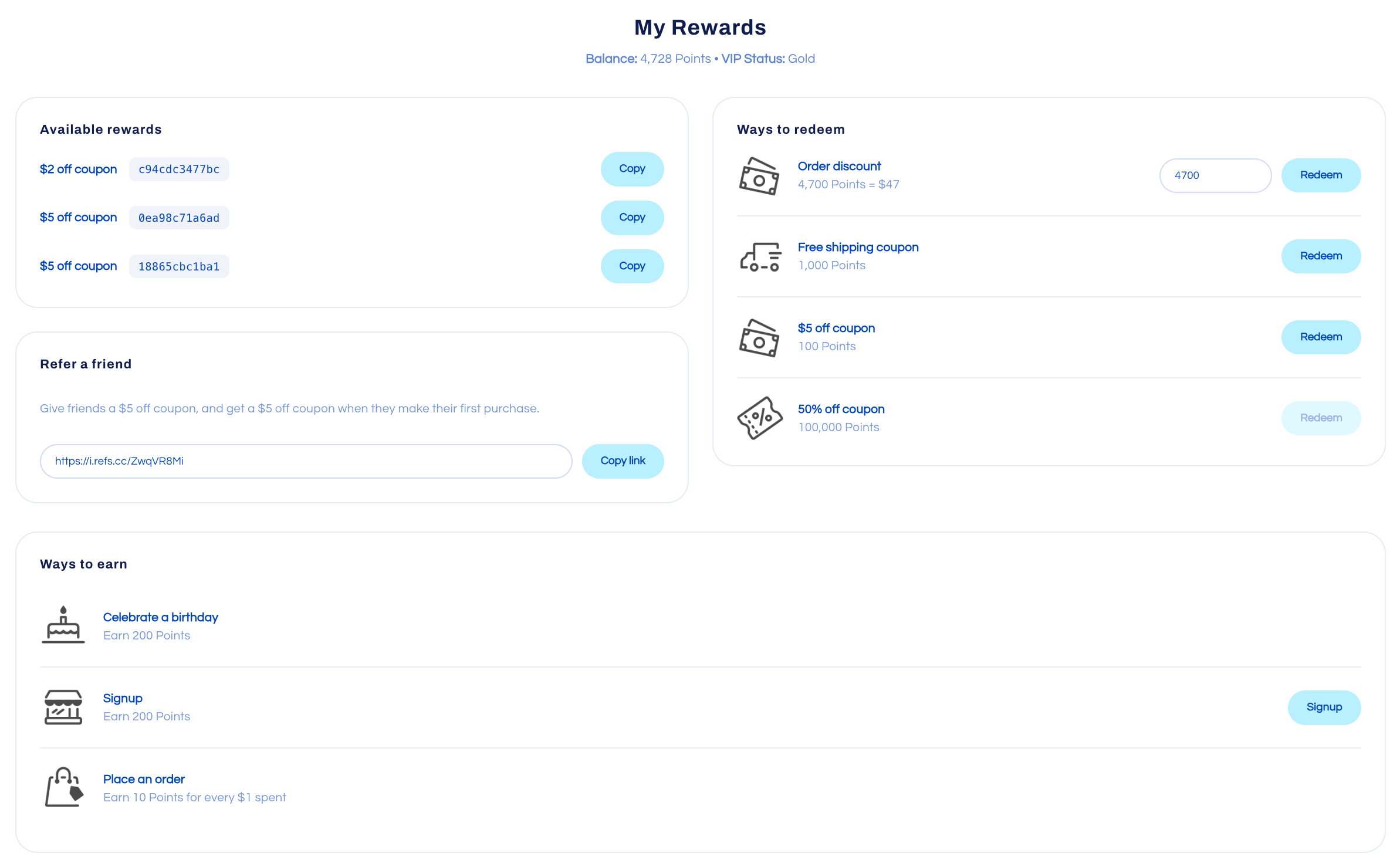
Setup instructions
In Smile
- In Smile Admin, navigate to Settings > Developer Tools.
- In the JavaScript SDK card, click Enable. If it is already enabled, proceed to the next step.
In Stay AI
- In the Stay AI admin interface, navigate to Legacy Portal > Design.
- At the bottom of the page, expand the CSS section and paste in the following:
CSS
.smile-loyalty {
  color: var(--text-color);
  font-family: var(--font-body-family);
  line-height: 1.5;
  display: flex;
  flex-direction: column;
  gap: 24px;
  container-type: inline-size;
  /* The portal wraps custom HTML with -16px side margins, pushing the block past
     the content pane where an ancestor clips it. We inset with padding instead:
     16px clears the overflow, 16px matches the portal's own rows. */
  margin: 16px 0;
  padding: 0 32px;
}

.smile-loyalty__muted { opacity: 0.6; }

/* Hero */
.smile-loyalty__hero {
  display: flex;
  flex-direction: column;
  align-items: center;
  gap: 6px;
  text-align: center;
}
.smile-loyalty__title {
  margin: 0;
  font-family: var(--font-heading-family);
  font-weight: var(--font-heading-weight);
  font-size: 1.75rem;
}
.smile-loyalty__summary { margin: 0; font-size: 1.05rem; opacity: 0.7; }

/* Two-column body: refer + codes on the left, redeem on the right */
.smile-loyalty__body {
  display: grid;
  grid-template-columns: 1fr 1fr;
  gap: 20px;
  align-items: start;
}
.smile-loyalty__col { display: flex; flex-direction: column; gap: 20px; }
@container (max-width: 620px) {
  .smile-loyalty__body { grid-template-columns: 1fr; }
}

/* Cards */
.smile-loyalty__card {
  display: flex;
  flex-direction: column;
  gap: 12px;
  padding: 20px;
  border: 1px solid color-mix(in srgb, currentColor 12%, transparent);
  border-radius: var(--product-card-corner-radius);
}
.smile-loyalty__heading { margin: 0; font-size: 1.05rem; font-weight: 600; }

/* Buttons (reuse the portal's button tokens) */
.smile-loyalty__btn {
  display: inline-flex;
  align-items: center;
  justify-content: center;
  gap: 6px;
  border: none;
  cursor: pointer;
  font-family: inherit;
  font-size: 0.9rem;
  line-height: 1.2;
  white-space: nowrap;
  text-decoration: none;
  padding: 9px 16px;
  border-radius: var(--stay-btn-secondary-radius);
  background: var(--stay-btn-secondary-background);
  color: var(--stay-btn-secondary-color);
  font-weight: var(--stay-btn-secondary-weight);
}
.smile-loyalty__btn:disabled, .smile-loyalty__btn.is-locked { opacity: 0.45; cursor: not-allowed; }
.smile-loyalty__btn.is-armed { outline: 2px solid var(--stay-ai-pink); outline-offset: 1px; }

/* Icon tile */
.smile-loyalty__tile {
  width: 40px;
  height: 40px;
  flex: none;
  display: grid;
  place-items: center;
}
.smile-loyalty__tile img { width: 100%; height: 100%; object-fit: contain; }
.smile-loyalty__tile svg { width: 20px; height: 20px; }

/* Inputs */
.smile-loyalty__input {
  padding: 9px 12px;
  border: 1px solid color-mix(in srgb, currentColor 20%, transparent);
  border-radius: var(--inputs-radius);
  font-family: inherit;
  font-size: 0.9rem;
  color: inherit;
  background: var(--secondary-portal-color);
}

/* Refer a friend */
.smile-loyalty__ref-row { display: flex; gap: 8px; flex-wrap: wrap; align-items: center; }
.smile-loyalty__ref-row .smile-loyalty__input { flex: 1 1 200px; min-width: 0; }

/* Reward codes */
.smile-loyalty__code-row { display: flex; align-items: center; gap: 10px; flex-wrap: wrap; }
.smile-loyalty__code-name { font-weight: 600; }
.smile-loyalty__code {
  font-family: ui-monospace, monospace;
  font-size: 0.9rem;
  background: color-mix(in srgb, currentColor 7%, transparent);
  padding: 3px 8px;
  border-radius: 6px;
}
.smile-loyalty__code-row .smile-loyalty__btn { margin-left: auto; }

/* Ways to redeem */
.smile-loyalty__offers { display: flex; flex-direction: column; gap: 14px; }
.smile-loyalty__offer {
  display: flex;
  align-items: center;
  gap: 12px;
  flex-wrap: wrap;
  padding-top: 14px;
  border-top: 1px solid color-mix(in srgb, currentColor 10%, transparent);
}
.smile-loyalty__offer:first-child { padding-top: 0; border-top: none; }
.smile-loyalty__offer-body { flex: 1 1 150px; min-width: 0; }
.smile-loyalty__offer-name { font-weight: 600; }
.smile-loyalty__offer-status { font-size: 0.85rem; opacity: 0.8; }
.smile-loyalty__success { opacity: 1; font-weight: 600; }
.smile-loyalty__offer-actions { display: flex; align-items: center; gap: 8px; margin-left: auto; }
.smile-loyalty__offer-actions .smile-loyalty__input { width: 96px; }

/* Ways to earn */
.smile-loyalty__earn { list-style: none; margin: 0; padding: 0; }
.smile-loyalty__earn-item { display: flex; align-items: center; gap: 14px; padding: 14px 0; }
.smile-loyalty__earn-item + .smile-loyalty__earn-item { border-top: 1px solid color-mix(in srgb, currentColor 10%, transparent); }
.smile-loyalty__earn-name { font-weight: 600; }
.smile-loyalty__earn-item .smile-loyalty__btn { margin-left: auto; }
- Expand the HTML section and paste in the following:
HTML
<div id="smile-loyalty" class="smile-loyalty" data-smile-loyalty>
  <div class="smile-loyalty__loading">Loading your rewards...</div>
</div>
- Expand the JavaScript section and paste in the following:
JavaScript
(function () {
  'use strict';

  var ROOT_ID = 'smile-loyalty';
  var PROGRAM_RESOURCES = ['pointsSettings', 'earningRules', 'referralSettings'];
  var CUSTOMER_RESOURCES = ['customerPointsWallet', 'customerVipStatus', 'customerPointsProducts', 'rewardFulfillments'];
  var REFRESH_AFTER_REDEEM = ['customerPointsWallet', 'rewardFulfillments', 'customerPointsProducts'];

  // Fallback tile icons (inherit the brand colour via currentColor) used when a
  // reward or earning rule has no image of its own, so every row stays aligned.
  var GIFT_ICON = '<svg viewBox="0 0 24 24" fill="none" stroke="currentColor" stroke-width="1.8" stroke-linecap="round" stroke-linejoin="round"><rect x="3" y="9" width="18" height="12" rx="1.5"/><path d="M3 13h18M12 9v12"/><path d="M12 9S10.5 4.5 8 5s-.5 4 4 4z"/><path d="M12 9s1.5-4.5 4-4 .5 4-4 4z"/></svg>';
  var STAR_ICON = '<svg viewBox="0 0 24 24" fill="none" stroke="currentColor" stroke-width="1.8" stroke-linecap="round" stroke-linejoin="round"><path d="M12 3l2.6 5.5 6 .8-4.4 4.2 1.1 6L12 16.8 6.7 19.5l1.1-6L3.4 9.3l6-.8z"/></svg>';

  // --- Readiness ----------------------------------------------------------
  // The portal is a single-page app that can reset our container back to its
  // loading scaffold, so we re-render whenever a #smile-loyalty needs it rather
  // than rendering once. Every render path produces a .smile-loyalty__hero, so
  // its absence means the scaffold is still showing.
  var rendering = (typeof WeakSet !== 'undefined') ? new WeakSet() : null;

  function needsRender(root) {
    return !!root.querySelector('.smile-loyalty__loading') || !root.querySelector('.smile-loyalty__hero');
  }

  function ensureRendered() {
    var root = document.getElementById(ROOT_ID);
    if (!root || !needsRender(root) || !window.Smile) return;
    if (rendering) {
      if (rendering.has(root)) return;
      rendering.add(root);
    }
    boot(root, function () { if (rendering) rendering.delete(root); });
  }

  function start() {
    ensureRendered();
    if ('MutationObserver' in window && document.body) {
      new MutationObserver(ensureRendered).observe(document.body, { childList: true, subtree: true });
    }
    document.addEventListener('smile-js-initialized', ensureRendered, { once: true });
  }

  start();

  // --- Data load ----------------------------------------------------------
  function boot(root, done) {
    function finish() { if (done) done(); }

    var customer;
    try {
      customer = window.Smile.customer.current();
    } catch (e) {
      // SDK present but not initialized yet — a later trigger will retry.
      finish();
      return;
    }

    if (!customer) {
      renderLoggedOut(root);
      finish();
      return;
    }

    window.Smile.preload(PROGRAM_RESOURCES.concat(CUSTOMER_RESOURCES))
      .catch(function (e) { console.warn('[smile-loyalty] preload failed; rendering with what is cached', e); })
      .then(function () {
        try { render(root, customer); } catch (e) { console.error('[smile-loyalty] render failed', e); }
        finish();
      });
  }

  function readData() {
    return {
      wallet: preloaded('customerPointsWallet'),
      vip: preloaded('customerVipStatus'),
      offers: preloaded('customerPointsProducts') || [],
      earned: preloaded('rewardFulfillments') || [],
      earn: preloaded('earningRules') || [],
      referral: preloaded('referralSettings')
    };
  }

  function preloaded(resource) {
    try {
      return window.Smile[resource].preloaded();
    } catch (e) {
      return null;
    }
  }

  // --- Rendering ----------------------------------------------------------
  function render(root, customer) {
    var data = readData();
    var frag = document.createDocumentFragment();

    frag.appendChild(renderHero(data.wallet, data.vip));

    var left = el('div', { class: 'smile-loyalty__col' });
    left.appendChild(renderEarned(data.earned));
    if (data.referral) left.appendChild(renderReferral(customer, data.referral));
    var right = el('div', { class: 'smile-loyalty__col' }, [renderOffers(root, customer, data)]);
    frag.appendChild(el('div', { class: 'smile-loyalty__body' }, [left, right]));

    frag.appendChild(renderEarn(data.earn));

    root.innerHTML = '';
    root.appendChild(frag);
  }

  function renderLoggedOut(root) {
    root.innerHTML = '';
    root.appendChild(el('div', { class: 'smile-loyalty__hero' }, [
      el('h2', { class: 'smile-loyalty__title', text: 'My Rewards' }),
      el('p', { class: 'smile-loyalty__summary', text: 'Log in to your account to view your points and rewards.' })
    ]));
  }

  function renderHero(wallet, vip) {
    var balance = wallet && typeof wallet.balance === 'number' ? wallet.balance : 0;
    var parts = [el('strong', { text: 'Balance:' }), ' ' + formatPoints(balance)];
    if (vip && vip.vipTier) {
      parts.push(' • ', el('strong', { text: 'VIP Status:' }), ' ' + vip.vipTier.name);
    }
    return el('div', { class: 'smile-loyalty__hero' }, [
      el('h2', { class: 'smile-loyalty__title', text: 'My Rewards' }),
      el('p', { class: 'smile-loyalty__summary' }, parts)
    ]);
  }

  function renderReferral(customer, referral) {
    var friend = referral.receiverReward && referral.receiverReward.name;
    var you = referral.senderReward && referral.senderReward.name;
    var desc = (friend && you)
      ? 'Give friends a ' + friend + ', and get a ' + you + ' when they make their first purchase.'
      : 'Share your link with friends to earn rewards.';

    var children = [el('p', { class: 'smile-loyalty__muted', text: desc })];
    if (customer.referralUrl) {
      children.push(el('div', { class: 'smile-loyalty__ref-row' }, [
        el('input', { class: 'smile-loyalty__input', type: 'text', value: customer.referralUrl, readonly: 'readonly' }),
        copyButton(customer.referralUrl, 'Copy link')
      ]));
    }
    return section('Refer a friend', children);
  }

  function renderEarned(earned) {
    var usable = earned.filter(function (f) {
      return f && f.fulfillmentStatus === 'issued' && !f.usedAt;
    });

    if (!usable.length) {
      return section('Available rewards', [
        el('p', { class: 'smile-loyalty__muted', text: 'No reward codes yet. Redeem your points to get one.' })
      ]);
    }

    var rows = usable.map(function (f) {
      return el('div', { class: 'smile-loyalty__code-row' }, [
        el('span', { class: 'smile-loyalty__code-name', text: f.name }),
        el('code', { class: 'smile-loyalty__code', text: f.code }),
        copyButton(f.code, 'Copy')
      ]);
    });
    return section('Available rewards', rows);
  }

  function renderOffers(root, customer, data) {
    if (!data.offers.length) {
      return section('Ways to redeem', [
        el('p', { class: 'smile-loyalty__muted', text: 'No rewards are available to redeem right now.' })
      ]);
    }
    var balance = (data.wallet && data.wallet.balance) || 0;
    var list = el('div', { class: 'smile-loyalty__offers' });
    data.offers.forEach(function (offer) {
      list.appendChild(renderOffer(root, customer, offer, balance));
    });
    return section('Ways to redeem', [list]);
  }

  function renderOffer(root, customer, offer, balance) {
    var pp = offer.pointsProduct || {};
    // Variable offers let the customer pick the amount, so the per-price name
    // (e.g. "$47 off coupon") is misleading — use the reward's generic name.
    var name = (pp.exchangeType === 'variable' && pp.reward && pp.reward.name) ? pp.reward.name : offer.name;
    var sub = el('div', { class: 'smile-loyalty__muted' });
    var status = el('div', { class: 'smile-loyalty__offer-status' });
    var body = el('div', { class: 'smile-loyalty__offer-body' }, [
      el('div', { class: 'smile-loyalty__offer-name', text: name }),
      sub,
      status
    ]);
    var actions = el('div', { class: 'smile-loyalty__offer-actions' });

    if (pp.exchangeType === 'variable') {
      buildVariable(root, customer, offer, balance, sub, actions, status);
    } else {
      buildFixed(root, customer, offer, balance, sub, actions, status);
    }

    var tile = iconTile(pp.reward && pp.reward.imageUrl, GIFT_ICON);
    return el('div', { class: 'smile-loyalty__offer' }, [tile, body, actions]);
  }

  function buildFixed(root, customer, offer, balance, sub, actions, status) {
    var pp = offer.pointsProduct;
    sub.textContent = formatPoints(offer.pointsPrice);

    if (balance < offer.pointsPrice) {
      actions.appendChild(lockedButton());
      return;
    }

    var btn = redeemButton('Redeem');
    attachConfirm(btn, 'Redeem', function () {
      doPurchase(root, customer, btn, status, pp.id, null);
    });
    actions.appendChild(btn);
  }

  function buildVariable(root, customer, offer, balance, sub, actions, status) {
    var pp = offer.pointsProduct;
    var step = pp.variablePointsStep || 1;
    var stepValue = pp.variablePointsStepRewardValue || 0;
    var min = pp.variablePointsMin || step;
    var hardMax = pp.variablePointsMax || Infinity;
    var affordableMax = Math.floor(Math.min(hardMax, balance) / step) * step;

    if (balance < min) {
      actions.appendChild(lockedButton());
      return;
    }

    // Snap to the step size and keep within the affordable range.
    function clamp(points) {
      var snapped = Math.round(points / step) * step;
      return Math.min(Math.max(snapped, min), affordableMax);
    }

    // Start at the product's suggested points price (the points behind its
    // headline reward, e.g. "$47 off"), clamped to what the customer can afford.
    var chosen = clamp(offer.pointsPrice || min);
    var input = el('input', { class: 'smile-loyalty__input', type: 'number', min: min, max: affordableMax, step: step, value: chosen });
    function showValue(points) { sub.textContent = formatPoints(points) + ' = ' + dollars(points, step, stepValue); }
    function preview() {
      var v = parseInt(input.value, 10);
      showValue(isNaN(v) ? min : v);
    }
    function commit() {
      var v = parseInt(input.value, 10);
      chosen = clamp(isNaN(v) ? min : v);
      input.value = chosen;
      showValue(chosen);
    }
    input.addEventListener('input', preview);
    input.addEventListener('change', commit);
    input.addEventListener('blur', commit);
    showValue(chosen);

    var btn = redeemButton('Redeem');
    attachConfirm(btn, 'Redeem', function () {
      commit();
      doPurchase(root, customer, btn, status, pp.id, chosen);
    });
    actions.appendChild(input);
    actions.appendChild(btn);
  }

  function lockedButton() {
    var btn = redeemButton('Redeem');
    btn.disabled = true;
    btn.classList.add('is-locked');
    return btn;
  }

  // Two-step confirm: the first click arms the button, a second click within 4s acts.
  function attachConfirm(btn, label, onConfirm) {
    var armed = false;
    var timer = null;
    function disarm() {
      armed = false;
      btn.textContent = label;
      btn.classList.remove('is-armed');
      if (timer) { clearTimeout(timer); timer = null; }
    }
    btn.addEventListener('click', function () {
      if (btn.disabled) return;
      if (!armed) {
        armed = true;
        btn.textContent = 'Tap to confirm';
        btn.classList.add('is-armed');
        timer = setTimeout(disarm, 4000);
        return;
      }
      disarm();
      onConfirm();
    });
  }

  function doPurchase(root, customer, btn, status, productId, pointsToSpend) {
    btn.disabled = true;
    btn.textContent = 'Redeeming...';
    status.textContent = '';
    status.classList.remove('smile-loyalty__success');

    var purchase = (typeof pointsToSpend === 'number')
      ? window.Smile.pointsProducts.purchase(productId, { pointsToSpend: pointsToSpend })
      : window.Smile.pointsProducts.purchase(productId);

    purchase
      .then(function (result) {
        var code = result && result.rewardFulfillment && result.rewardFulfillment.code;
        status.classList.add('smile-loyalty__success');
        status.textContent = code ? '✓ Redeemed! Code: ' : '✓ Redeemed!';
        if (code) status.appendChild(el('code', { class: 'smile-loyalty__code', text: code }));
        return window.Smile.preload(REFRESH_AFTER_REDEEM).then(function () {
          setTimeout(function () { render(root, customer); }, 1800);
        });
      })
      .catch(function (e) {
        console.error('[smile-loyalty] redeem failed', e);
        btn.disabled = false;
        status.textContent = 'Couldn’t redeem — please try again.';
      });
  }

  function renderEarn(rules) {
    if (!rules.length) {
      return section('Ways to earn', [
        el('p', { class: 'smile-loyalty__muted', text: 'No ways to earn are available right now.' })
      ]);
    }
    var list = el('ul', { class: 'smile-loyalty__earn' });
    rules.forEach(function (rule) {
      var item = el('li', { class: 'smile-loyalty__earn-item' }, [
        iconTile(rule.imageUrl, STAR_ICON),
        el('div', {}, [
          el('div', { class: 'smile-loyalty__earn-name', text: rule.name }),
          el('div', { class: 'smile-loyalty__muted', text: earnText(rule) })
        ])
      ]);
      if (rule.actionText && rule.actionUrl) {
        item.appendChild(el('a', { class: 'smile-loyalty__btn smile-loyalty__btn--link', href: rule.actionUrl, text: rule.actionText }));
      }
      list.appendChild(item);
    });
    return section('Ways to earn', [list]);
  }

  function earnText(rule) {
    var rv = rule.rewardValue || {};
    if (rv.type === 'fixed' && rv.fixed) {
      return 'Earn ' + formatPoints(rv.fixed.value);
    }
    if (rv.type === 'variable' && rv.variable) {
      return 'Earn ' + formatPoints(rv.variable.value) + ' for every $' + rv.variable.perAmount + ' spent';
    }
    return '';
  }

  // --- Helpers ------------------------------------------------------------
  function section(title, children) {
    var card = el('section', { class: 'smile-loyalty__card' });
    card.appendChild(el('h3', { class: 'smile-loyalty__heading', text: title }));
    children.forEach(function (c) { if (c) card.appendChild(c); });
    return card;
  }

  function redeemButton(label) {
    return el('button', { class: 'smile-loyalty__btn', type: 'button', text: label });
  }

  function iconTile(imageUrl, fallbackSvg) {
    var tile = el('span', { class: 'smile-loyalty__tile' });
    if (imageUrl) tile.appendChild(el('img', { src: imageUrl, alt: '' }));
    else tile.innerHTML = fallbackSvg;
    return tile;
  }

  function copyButton(text, label) {
    var btn = el('button', { class: 'smile-loyalty__btn', type: 'button', text: label });
    btn.addEventListener('click', function () {
      copyText(text).then(function () {
        btn.textContent = 'Copied!';
        setTimeout(function () { btn.textContent = label; }, 2000);
      }, function () {
        btn.textContent = 'Copy failed';
        setTimeout(function () { btn.textContent = label; }, 2000);
      });
    });
    return btn;
  }

  function copyText(text) {
    if (navigator.clipboard && navigator.clipboard.writeText) {
      return navigator.clipboard.writeText(text);
    }
    return new Promise(function (resolve, reject) {
      try {
        var ta = document.createElement('textarea');
        ta.value = text;
        ta.style.position = 'fixed';
        ta.style.opacity = '0';
        document.body.appendChild(ta);
        ta.select();
        var ok = document.execCommand('copy');
        document.body.removeChild(ta);
        ok ? resolve() : reject();
      } catch (e) {
        reject(e);
      }
    });
  }

  function formatPoints(n) {
    try {
      return window.Smile.formatPoints(n);
    } catch (e) {
      return n + ' points';
    }
  }

  function dollars(points, step, stepValue) {
    var amount = Math.round((points / step) * stepValue * 100) / 100;
    return '$' + (amount % 1 === 0 ? amount : amount.toFixed(2));
  }

  // Minimal DOM builder. opts: { class, text, <any attribute> }.
  function el(tag, opts, children) {
    var node = document.createElement(tag);
    opts = opts || {};
    Object.keys(opts).forEach(function (k) {
      var v = opts[k];
      if (v == null) return;
      if (k === 'class') node.className = v;
      else if (k === 'text') node.textContent = v;
      else node.setAttribute(k, v);
    });
    if (children) {
      children.forEach(function (c) {
        if (c == null) return;
        node.appendChild(typeof c === 'string' ? document.createTextNode(c) : c);
      });
    }
    return node;
  }
})();
- Click the Submit button at the top of the page to save your changes.
your-store-url.com with your actual store URL):
https://your-store-url.com/apps/retextion/
Known limitations
- The loyalty section is only available to customers who are logged in directly to your Shopify store. If a customer logged in to your store via a Stay AI link, they will not see the loyalty section.