Smile identifies different types of customers within your program. Customers are identified as either a Member, Guest or Excluded. You can see any customer’s type in the Customers table and on the individual customer’s profile in Smile Admin.

Members

Members are customers who have joined your loyalty program. Typically, a customer becomes a Member by creating an online account on your store. For Shopify merchants, how a customer becomes a Member depends on the type of customer accounts your store uses:
  • With legacy customer accounts, customers become Members by creating an account with an email and password.
  • With customer accounts, customers become Members when they sign in using their email and the one-time 6-digit verification code sent to them and access Smile while signed in.
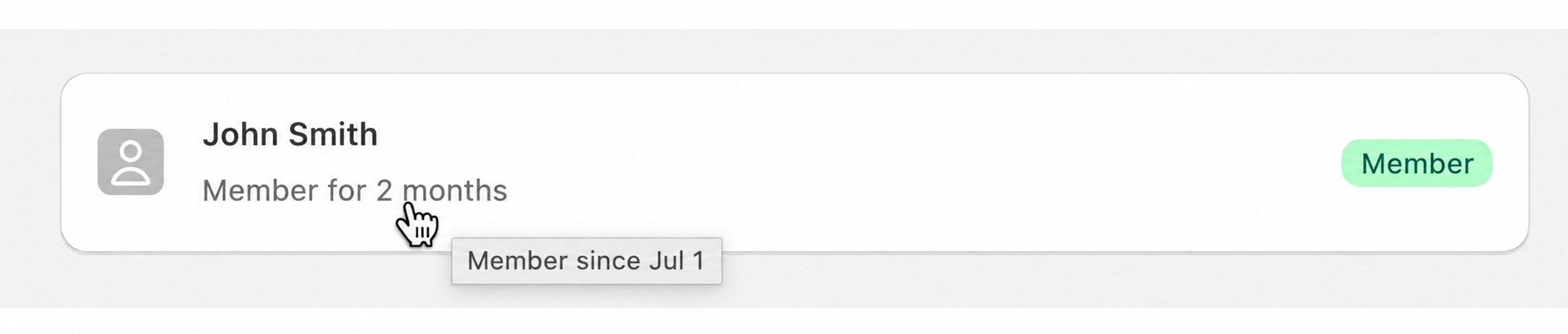
Customers also become Members when they place an in-store order using Shopify POS. When the order is linked to a customer using an identifier such as an email address, name, or phone number, they’re automatically recognized as a Member. There’s no way to manually convert a Guest into a Member, this only happens automatically through the actions above. To see when a customer became a Member, open their profile in Smile Admin and hover over the membership duration below their name. The exact date they became a Member will appear.
Member Date Smile Admin 1

Guests

On Shopify, Guests are customers who have not yet become a Member using one of the methods described above.

On BigCommerce only customers who have created store accounts are sent to Smile - no “Guest” customers are sent. BigCommerce stores will only have Member and Excluded customers identified in Smile. If you would like a customer to be synced over to Smile, be sure to get them to create an account on your store.
Tip: To learn how different types of customers can participate in your program on Shopify or edit these settings, please see our guide on configuring program participation.

Excluded

Excluded customers have been removed from your loyalty program. Customers can be individually excluded, or excluded based on their tag or customer group. When a customer is Excluded, they will not be able to see the Smile panel when logged in, or participate in your points, referral or VIP programs.

Troubleshoot a customer showing as a Guest

If a customer using Shopify’s new customer accounts signed up but is still showing as a Guest, ask them to sign in using their 6-digit verification code and open the Smile rewards panel or Loyalty Hub (if enabled). Once Smile content loads during their signed-in session, their customer type should update. If the customer is still showing as a Guest after completing these steps, contact our support team at help@smile.io for assistance.