

Redeem through the Smile panel
Redeeming through the panel is the default configuration and is available on all Smile plans, including Free, Essential, and Standard.
- Log in to their account: Customers must log in with a store account to view and redeem points.
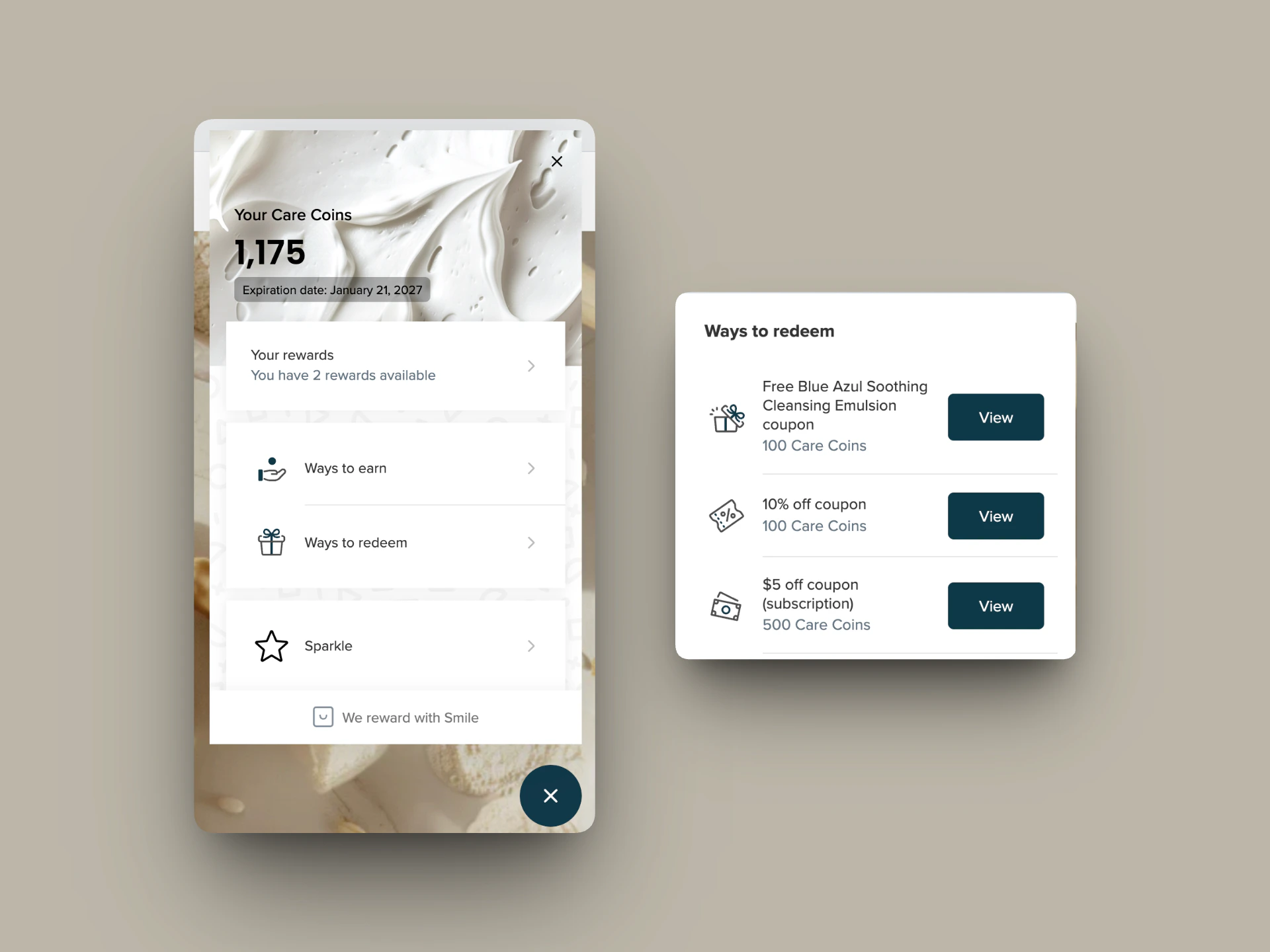
- Open the panel: Customers click the launcher to open the Smile panel. In the panel, they select Ways to redeem.
- Choose a reward type: When selecting a reward type, what customers see in the panel depends on how you’ve configured your rewards in Smile Admin.
- Fixed amount reward: If customers have enough points, they can click View for full reward details or Redeem next to the reward.
- Incremental reward: Customers use the points slider to select how many of their points to spend, then click Redeem.
- Apply or save the discount code: After redeeming, customers see their discount code displayed in the Smile panel, along with an Apply code button:
- Clicking Apply code automatically applies the discount at checkout. Customers can also copy the code to use later.
- The code appears under Your rewards in the panel and remains available if not used immediately. Depending on your email settings, it may also be sent to the customer by email.
Redeem in Loyalty Hub
Feature availability: Loyalty Hub is available only on Growth, Plus, and Enterprise plans for merchants on the Shopify platform. It requires additional setup, learn more here.
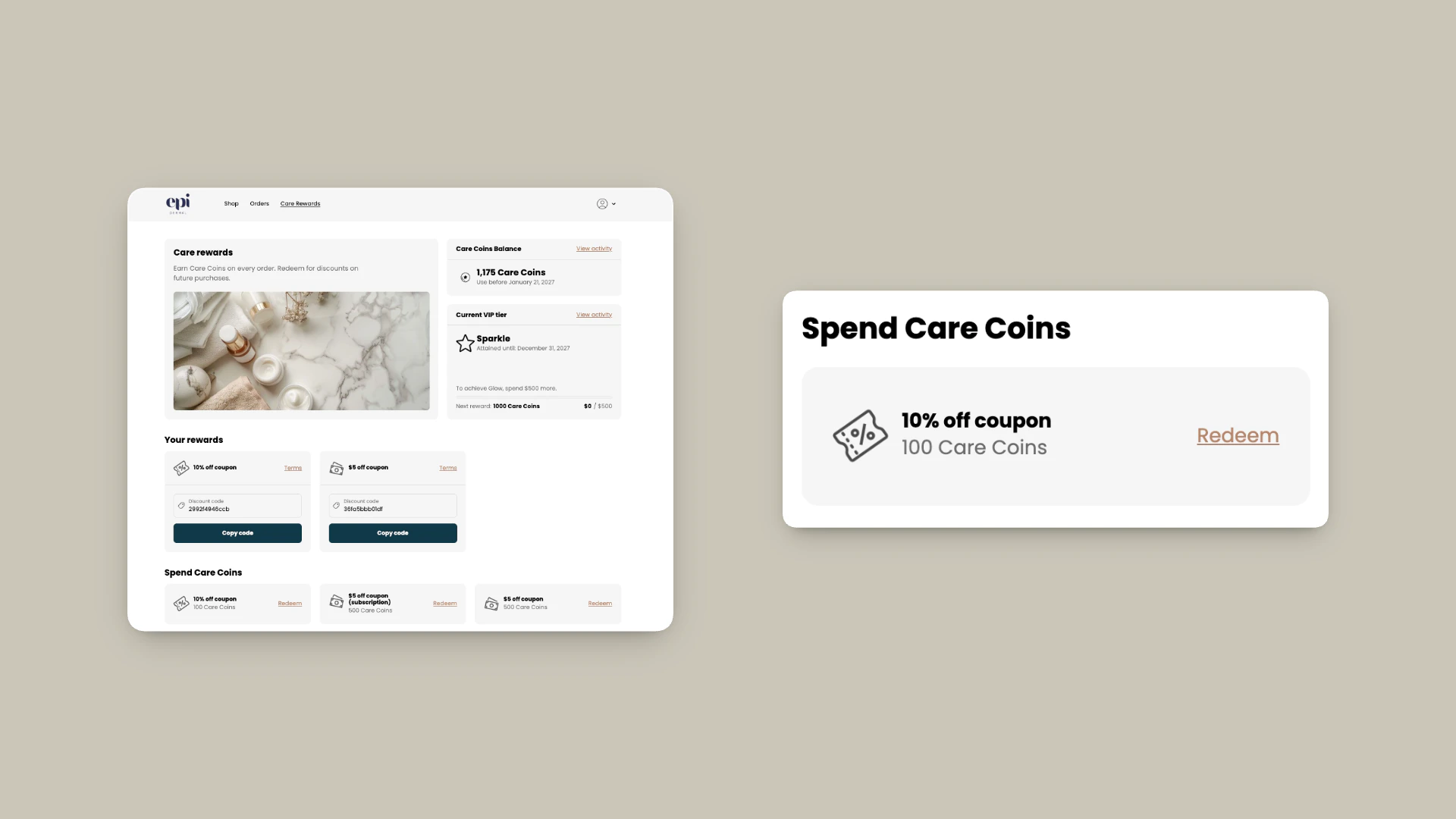
- Log in and open Loyalty Hub: Customers sign in to their store account and go to the Loyalty Hub page to view their points balance and available rewards.
- Redeem a reward: When selecting a reward type, what customers see in Loyalty Hub depends on how you’ve configured your rewards in Smile Admin.
- Fixed rewards: Customers click Redeem next to an available reward.
- Incremental rewards: Customers use the points stepper to choose how many points to spend, then click Redeem.
- Apply the discount: After redeeming, a discount code appears with a Copy code button to paste in checkout or for later use. The reward also appears under Your rewards in Loyalty Hub until it’s used or expires.
Redeem at checkout
Feature availability: Redeem at checkout is available only on Growth, Plus, and Enterprise plans for merchants on the Shopify Plus platform. It requires additional setup, learn more here.
- Add items to cart and proceed to checkout.
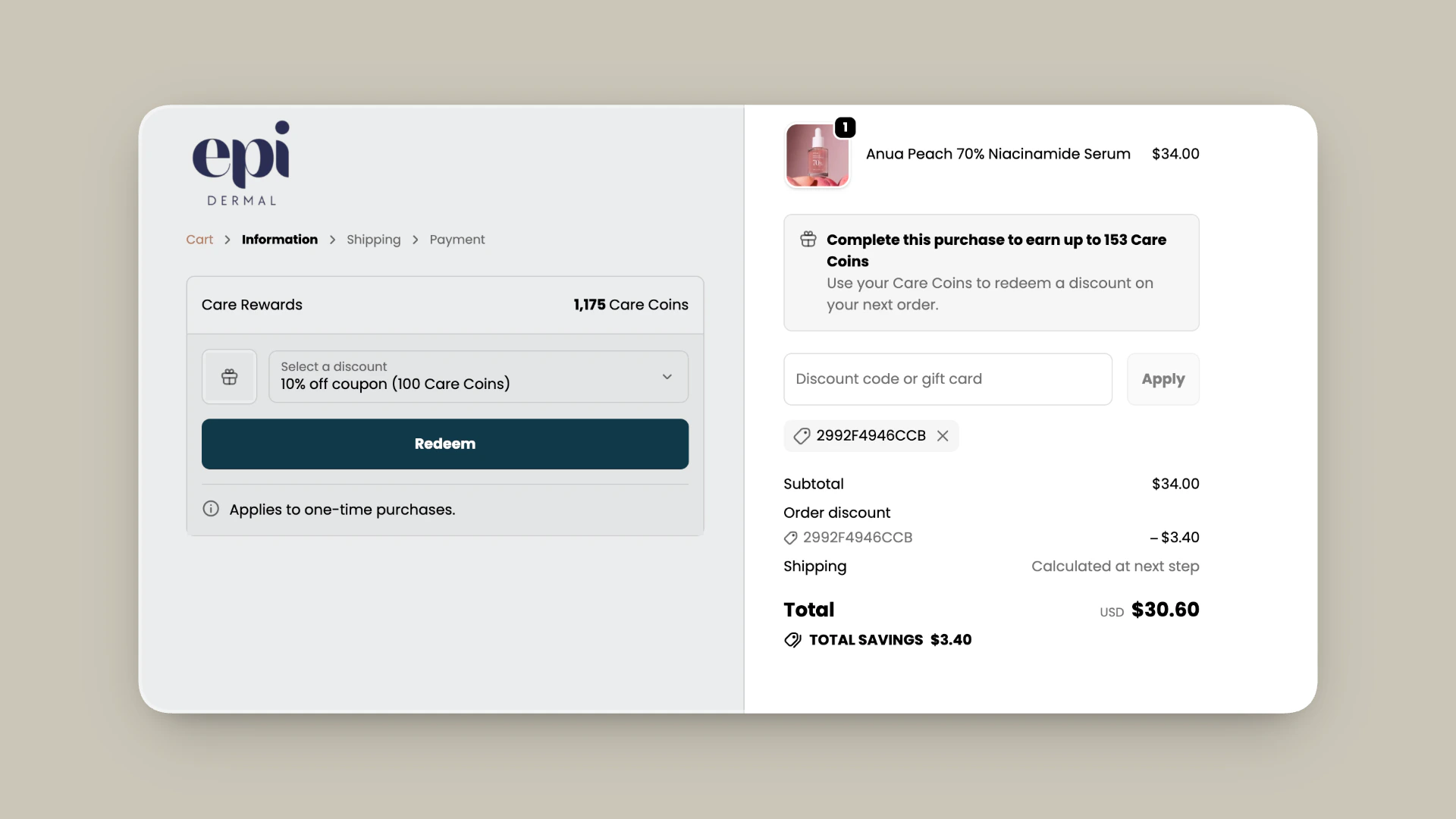
- At checkout, customers open the Rewards section or dropdown (depending on your setup):
- Fixed rewards: Customers open the Rewards dropdown, select a reward, and click Redeem.
- Incremental rewards: Customers use the points stepper to choose how many points to redeem, then click Redeem.
- Discount applied: The discount code is applied automatically, and the order total updates to show the discount.
- Find the code later (optional): If the order isn’t completed, the discount code remains in the customer’s account. It can be viewed under Your rewards in the panel or in the email notification.
Note: The in-store redemption experience is different when using Shopify POS. Customers can redeem points directly through your POS checkout. Learn more in: Set up and spend points in store
Redeem multiple rewards
If discount combinations are enabled, customers can use more than one reward per order:- One reward can be redeemed directly — either from the Apply code button, or through the Redeem at checkout option.
- If customers want to use a second reward, they’ll need to copy and paste the discount code manually at checkout.